

Summary
Unable to log in to the portal download. Program updates won’t download or you receive an error "Sorry, there has been an error. This document is unavailable."
Resolution
I can’t log in using my user ID and password
- Go directly to the Sage BusinessWorks: Download Portal.
- Once there, select the desired download.
- Enter your Sage Portal username and password.
 TIP:
- The login screen looks like this:
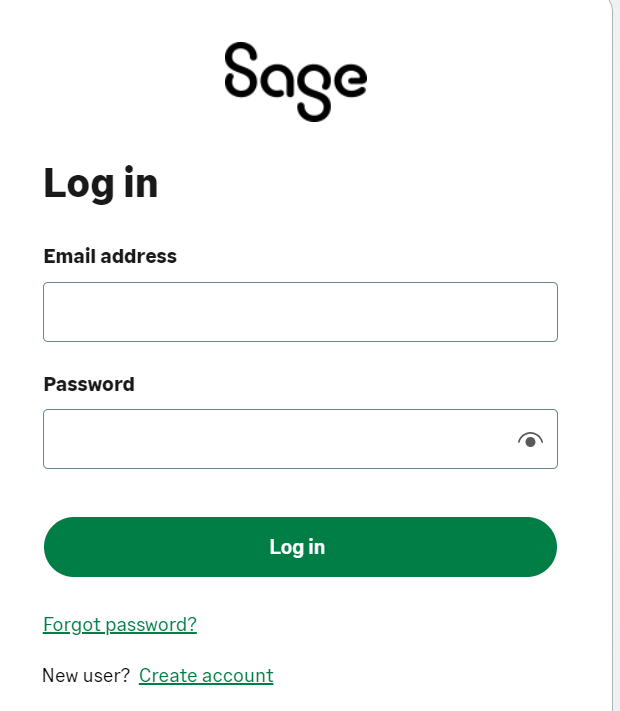
- Don’t use the 'Sign In' button at the top right of the screen. This login won’t work for downloads

Clear cache or use a different browser
- Clear the cache in your browser.
- Try a different browser. If using Chrome, try accessing Sage BusinessWorks: Download Portal using Edge.
Antivirus software is blocking the download
- Select to allow or keep the downloaded when prompted.
- Disable the antivirus program.
- Download the file again.
- Enable the antivirus program.
- If the error continues, work with your antivirus vendor to allow the download.
The browser isn’t loading the download
- Right-click on the Download button.
- Select Open in a New Window.
- Once the new page loads click the refresh option on the browser, and the download will start.

Page won’t load or Sorry message appears
- Open the browser in Incognito or InPrivate mode
- If using Chrome, click the three dots in the top-right corner and select New Incognito Window
- If using Edge, click the three dots in the top-right corner and select New InPrivate Window
- If using Firefox, click the three lines in the top-right corner and select New Private Window
Need more help?
 Africa
 Asia
 Australia
 Canada
 France
 Ireland
 Kenya
 Nigeria
 Portugal
 South Africa
 Spain
 United Arab Emirates
 United Kingdom
 Germany