
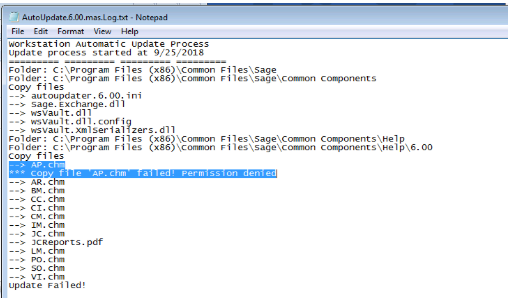
Fix folder permissions in the Sage directory
- Browse to C:\ProgramData (or C:\Program Files (x86)\Common Files in version 2019 or earlier).
- Right-click the Sage folder, then select Properties.
- Select the Security tab.
- Click Advanced.
- Verify the user has FULL control for this folder, subfolders, and files.
- Note: Give the current user Full control if access is missing.
- Click OK until all windows close.
- Open the Sage 100 workstation client again.
Refresh Common Components and AutoUpdate files
- Close Sage 100 on the workstation.
- Rename or delete files in these locations:
- C:\ProgramData\Sage\Common Components (version 2020 or higher)
- Version 2019 or earlier:
- C:\Program Files (x86)\Common Files\Sage\Common Components (64-bit system)
- C:\Program Files\Common Files\Sage\Common Components (32-bit system)
- Remove these files if present (6.00 is an example; the applicable version is in the file name):
- autoupdater.6.00.ini or autoupdater.6.10.ini
- autoupdater6.00.payroll.ini or autoupdater.6.10.payroll.ini (Payroll 2.0)
- AutoUpdate.6.00.mas.Log.txt or AutoUpdate.6.10.mas.Log.txt
- AutoUpdate.6.00.payroll.Log.txt or AutoUpdate.6.10.payroll.Log.txt (Payroll 2.0)
- Restart the workstation.
- Start Sage 100 and allow Workstation Synchronization to run.
- Log in if no errors appear.
Manually update files if synchronization fails
- Identify files listed in the AutoUpdate log files.
- On the server, browse to the ..\Mas90\Home\Lib\_repository.
- Locate the latest product update or payroll version folder.
- Copy missing files to the workstation and overwrite existing files.
Create a Common Components folder for upgrade scenarios
Use this option during upgrades to version 2020 or later when errors appear.
Reinstalling the Sage 100 workstation should populate the Common Components folder.
To create the folder manually:
- For version 2020 or higher, use:
- C:\ProgramData\Sage\Common Components
- For Sage 100 version 2019 or earlier, create the required folder in one of these locations:
- C:\Program Files (x86)\Common Files\Sage\Common Components (64-bit system)
- C:\Program Files\Common Files\Sage\Common Components (32-bit system)
Note: Errors can appear if you copy an older MAS90 folder without running an installation.
Check antivirus interference
Antivirus software can block synchronization and cause repeated failures.
- Disable containment or virtual environment features temporarily.
- Example: Comodo Client Security containment can block AutoUpdate scripts.