Error using Global Search after installation on Windows 11 / Windows Server 2022
Summary
Error: "A problem occurred and the search could not be performed. Contact your system administrator for help.". This error appears when using Global Search in the Sage 300 program after installing updates on Windows 11 or Windows Server 2022.
Description
Ask your IT team or Sage Business Partner to help check and potentially update your Java Runtime Environment (JRE).
Cause
Global Search's server (Solr) runs on Java. Newer versions of Windows don't detect the version of Java that your version of Sage 300 is using.
Resolution
Confirm the cause
1. Open the Command Prompt cmd.exe.
2. Run Solr directly using C:\Program Files (x86)\Sage\GS\start.bat.
3. After troubleshooting, as shown below, you see the message ERROR: Java 1.8 or later is required to run Solr. Current Java version is:
Note: As of March 2024 the required version is Java 8 update 401.

Update your system as necessary to resolve this error
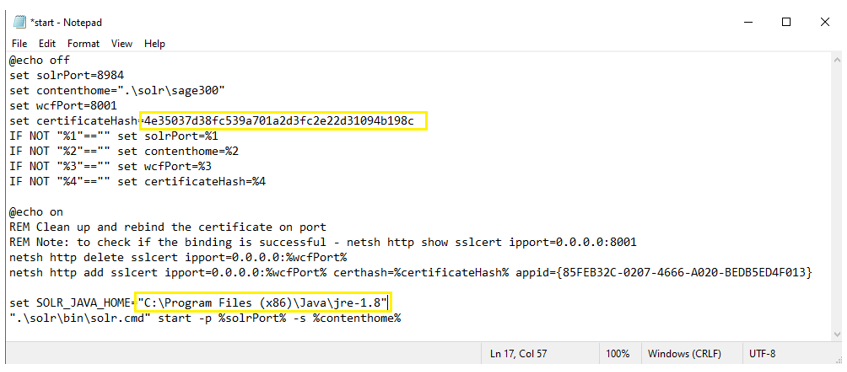
- Update start.bat to install a certificate with a new hash 4e35037d38fc539a701a2d3fc2e22d31094b198c.
- Find start.bat in C:\Program Files (x86)\Sage\GS\start.bat
- Find the hash value in
- GS\GlobalSearchWindowsService
- GlobalSearchWindowService.exe.config
- Update your version of JRE. You can download the latest version from: https://adoptium.net/temurin/releases/?os=windows&package=jre.
- The name of your file will be similar to jre-8u401-windows-i586.exe.
- Run this executable and install the JRE. You can leave the defaults or adjust them. The default location will be C:\Program Files (x86)\Java\jre-1.8.
- Note this path
- In start.bat, change the environment variable SOLR_JAVA_HOME to this new JRE path. In the image below, changes appear in yellow.
- Save changes to start.bat and reboot.
Need more help?
Solution Properties
- Solution ID
- 240304163834590
- Last Modified Date
- Thu Mar 19 19:08:24 UTC 2026
- Views
- 0