Imported Sage Intelligence Reports don’t convert properly to SI version 2025 and higher
Summary
Reports that are imported into SI v2025 have errors.
#NAME or #VALUE in the report.
A Dongle error in the report.
Not able to open converted Sage Intelligence reports in SI version 2025.
SI version 8.0
Cause
Templates that were built using SI Report Designer v1.0 are incompatible with the new version due to missing components that are required.
To identify if the report was created in v1.0 open the workbook/template and inspect the Accounts sheet (you may need to unhide that sheet) – then check if it has these columns (RollupCode1, RollupCode2, RollupCode3, RollupCode4).
If it doesn’t have these columns, then the workbook is a v1.0 add-in workbook and needs some manual steps to resolve.
Resolution
Sage Intelligence Development has reviewed this issue and the following recommendations were made:
To resolve this issue, the clients will need to carry out a set of steps for reports having this issue:
- Select the report in Report Manager and click Design to open up the Excel template
- In the template, click Add to add a new sheet and rename the new sheet to “Rollups” – make note of the sheet number – you may need to open up the Developer menu in Excel and click Visual Basic to see the sheet number or you can enter a formula ‘=SHEET("Rollups")’ – note that sometimes this number is offset by 1 so the actual number may be the output of that formula minus 1
- Then in Report Manager click Save Excel Template
- Then in Report Manager click the report and double-click to expand and click the Union Sub Reports item in the explorer tree
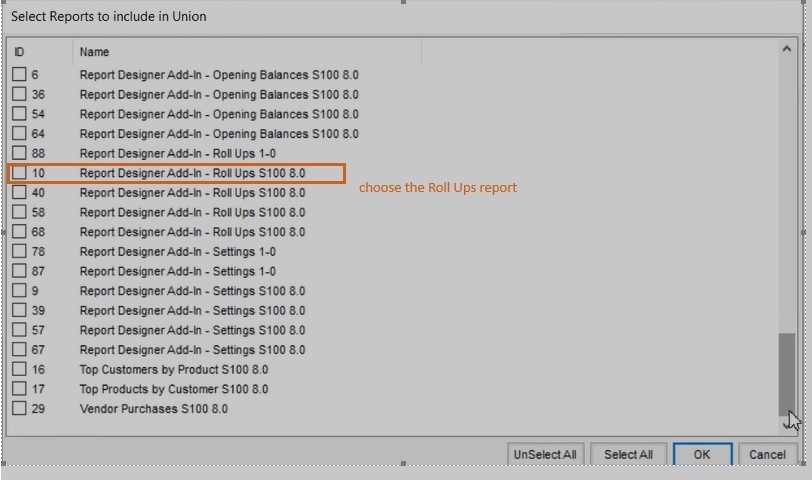
- Then on the right-hand side pane click “Add” and choose the Roll Ups report
- Then ensure that the Output Sheet property for this newly added report matches the sheet number that was determined in the 2nd bullet above.
- Now locate the Accounts sub report in the Union Sub Reports list and make a note of its output sheet number and then delete the report
Example:
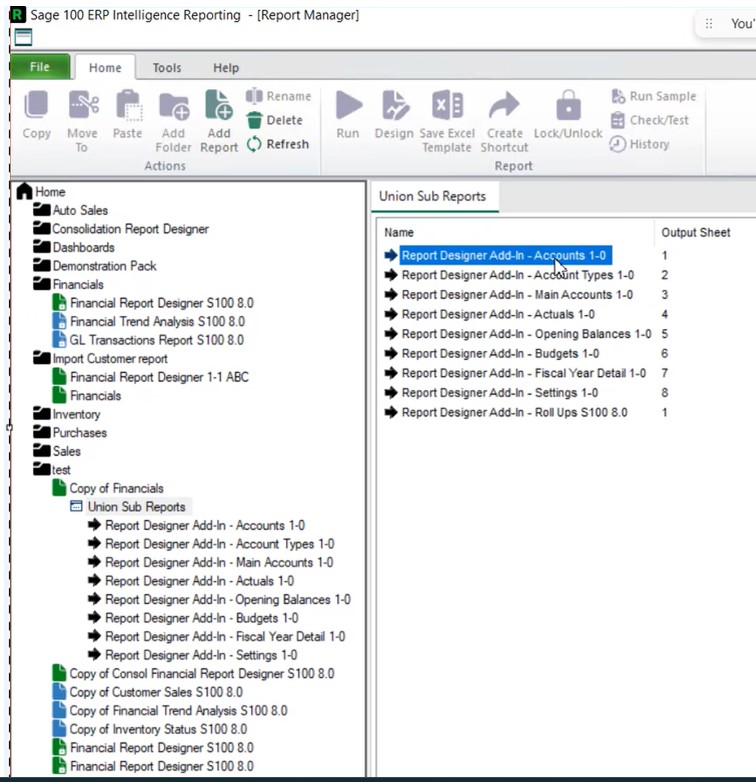
- Then click “Add” to add a new report and choose a newer Accounts report 8.0

- Then set the Output Sheet number to the one that it had previously
- The step above will ensure that the report is now using a later version of the Accounts report that matches the config in the later version of the add-in for Sage 100 – it will have the RollupCode columns added in the report
- Run out the report – the task pane should now load, and formulas should work – note that you see any layouts and won’t see the Layout Generator icons in the ribbon because these reports weren’t created with the layout generator feature.
Solution Properties
- Solution ID
- 250910000133303
- Last Modified Date
- Tue Oct 07 15:52:22 UTC 2025
- Views
- 0