

Summary
Learn how to configure Sage 100 to track qualified overtime compensation for the tax year 2025. This setup ensures correct reporting on Form W-2.
Description
Learn how to apply the OBBBA rules for nontaxable overtime and update payroll settings in Sage 100.
 NOTE: MUST install Payroll Update 2.26.0
Compatible with versions:
-
- Sage 100 2025 (7.40)
- Sage 100 2024 (7.30)
- Sage 100 2023 (7.20)
- Sage 100 2022 (7.10)
Cause
Federal Tax changes included in the One Big Beautiful Bill Act.
Resolution
NOTE: This tax break is a tax deduction taken at the time you file your taxes. There are no changes to the tax calculations or withholding amounts on the employee’s paycheck. If the employee anticipates getting extra money back, it’s up to the employee to change their W-4 accordingly. The purpose of this enhancement is to provide an easier way for the user to separate out the 0.5 portion of the overtime. It will print that amount on the employee’s check and populate the W-2 field during year-end processing starting in tax year 2026.
Install required payroll update
- Install Payroll Update 2.26.0 before you begin.
- Confirm compatibility with your Sage 100 version:
- Sage 100 2025 (7.40)
- Sage 100 2024 (7.30)
- Sage 100 2023 (7.20)
- Sage 100 2022 (7.10)
Note: Install this update to support qualified overtime tracking.
Understand qualified overtime rules
- OBBBA excludes qualified overtime compensation from federal withholding tax for the tax years 2025–2028.
- Qualified overtime equals one third of the overtime premium portion.
- Qualified overtime equals one-quarter of the double-time premium portion.

Example calculation
- Regular Rate = $40.00/hour
- OT Overtime Eligibility (1.5 multiplier) $900 / 3 = $300.00
- DT Double Overtime Eligibility (2.0 multiplier) $1,600 / 4 = $400.00
- Total overtime earnings: $2,500.00
- Total Qualified nontaxable overtime: $700
Enter qualified nontaxable overtime
Access employee records
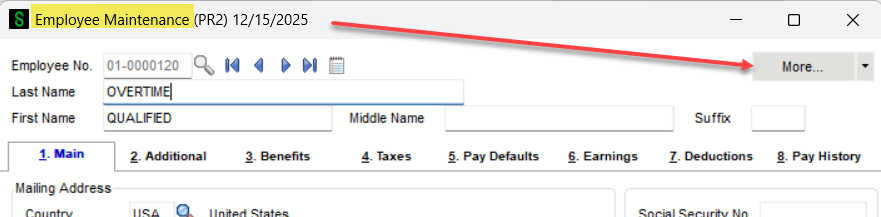
- Open Employee Maintenance.
- Select the employee record.
- Click More button; Select Tax Summary; click the More button; select Benefits.

Enter the qualified amount
- Generate Earnings Reports for the entire year [2025] year for each employee.
- Manually calculate the qualified nontaxable overtime.
- Enter the amount in the Benefits window.

Enable printing for checks or direct deposits
- Go to Check and Direct Deposit Printing.
- Locate the field "Print nontaxable overtime".
- Select the field to display the value on payment records.

Verify W-2 reporting
- Sage 100 prints the qualified amount in Box 14 of Form W-2.
- The system uses the description OBBBTT.
- The reported amount matches the value entered in the Benefits window.

Review compliance guidance
- The IRS issued transition relief for the tax year 2025.
- This guidance supports new reporting requirements under the OBBBA.
- Review the IRS Official Notice 2025-62: Transition penalty relief for the tax year 2025.
 Africa
 Asia
 Australia
 Canada
 France
 Ireland
 Kenya
 Nigeria
 Portugal
 South Africa
 Spain
 United Arab Emirates
 United Kingdom
 Germany