

Summary
Sage BusinessWorks makes it easy to create an exact copy of your company with its build-in utility. Use it to archive your data at year-end, switch your General Ledger fiscal year, or update your Inventory Control costing method.
Resolution
To copy a company
- Have all other users exit Sage BusinessWorks.
- From the Sage BusinessWorks Launcher, select Utilities, Maintain Companies.
- Click OK at the exclusive option message.
- Click the Look-up button to select the Company ID that you need to copy.
- Select the company and click Accept.
- Click the Copy button.
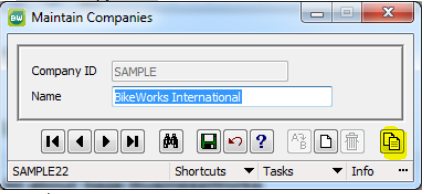
- On the Copy Company screen, enter a new Company ID (for example, PAYROLL2024).
- Check the Copy User security to grant users the same user security as the original company.
- Then select OK to copy your company and restore to the new company ID.
To create a new company based on data from a copied folder
- Start Sage BusinessWorks.
- From the launcher select Utilities, Maintain Companies.
- Add the company to restore, using the same ID as the one in the backup.
- If you use the same ID, see How to change or rename a company ID
- Failure to change the original company ID will result in loss of data in the live company
- Browse to Sage\BWData\[Company ID] and delete the folder's contents without deleting the folder itself.
- Copy the contents from the old \BWData\Company ID folder to the new location.
 Africa
 Asia
Asia Australia
 Canada
 France
 Ireland
 Kenya
Kenya Nigeria
 Portugal
 South Africa
 Spain
Spain United Arab Emirates
 United Kingdom
 Germany