

Summary
Description
Sage 100 runs Workstation Synchronization each time Sage 100 Standard starts after you install a product or payroll update.
The synchronization process checks for workstation file updates and copies any required files.
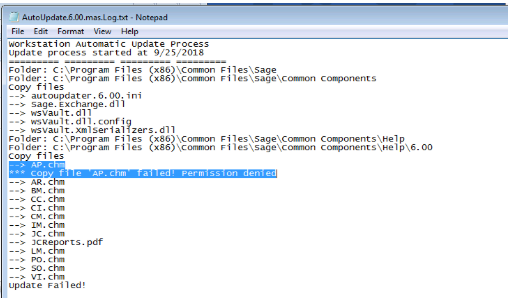
If the log file shows "Copy Files failed" or "one or more files could not be copied", the synchronization failed.
The error may occur without displaying an on-screen message during synchronization.
Cause
Beginning with Sage 100 Standard 2018.4, Sage 100 checks for updated workstation files after a Product Update installation. For Sage 100 2018 and later, this also applies after installing a Payroll 2.x update. When a workstation starts for the first time after an update, Sage 100 detects any required file updates. Sage 100 then copies the updated files to the workstation automatically. If the update of any files fails, Sage 100 will display the following message:

You need to resolve failed copy attempts on the Sage 100 Workstation receiving the message to avoid errors or unexpected results. The most common reason for failed update attempts is that one or more files are in use or locked on the workstation. Under normal circumstances, this is unexpected, but it can occur if orphaned pvxwin32.exe sessions or other external processes are running. Examining the log file mentioned in the message above, you’ll see a list of all the files copied, their location, and which files failed.
Resolution
Fix folder permissions in the Sage directory
- Browse to C:\ProgramData (or C:\Program Files (x86)\Common Files in version 2019 or earlier).
- Right-click the Sage folder, then select Properties.
- Select the Security tab.
- Click Advanced.
- Verify the user has FULL control for this folder, subfolders, and files.
- Note: Give the current user Full control if access is missing.
- Click OK until all windows close.
- Open the Sage 100 workstation client again.
Refresh Common Components and AutoUpdate files
- Close Sage 100 on the workstation.
- Rename or delete files in these locations:
- C:\ProgramData\Sage\Common Components (version 2020 or higher)
- Version 2019 or earlier:
- C:\Program Files (x86)\Common Files\Sage\Common Components (64-bit system)
- C:\Program Files\Common Files\Sage\Common Components (32-bit system)
- Remove these files if present (6.00 is an example; the applicable version is in the file name):
- autoupdater.6.00.ini or autoupdater.6.10.ini
- autoupdater6.00.payroll.ini or autoupdater.6.10.payroll.ini (Payroll 2.0)
- AutoUpdate.6.00.mas.Log.txt or AutoUpdate.6.10.mas.Log.txt
- AutoUpdate.6.00.payroll.Log.txt or AutoUpdate.6.10.payroll.Log.txt (Payroll 2.0)
- Restart the workstation.
- Start Sage 100 and allow Workstation Synchronization to run.
- Log in if no errors appear.
Manually update files if synchronization fails
- Identify files listed in the AutoUpdate log files.
- On the server, browse to the ..\Mas90\Home\Lib\_repository.
- Locate the latest product update or payroll version folder.
- Copy missing files to the workstation and overwrite existing files.
Create a Common Components folder for upgrade scenarios
- For version 2020 or higher, use:
- C:\ProgramData\Sage\Common Components
- For Sage 100 version 2019 or earlier, create the required folder in one of these locations:
- C:\Program Files (x86)\Common Files\Sage\Common Components (64-bit system)
- C:\Program Files\Common Files\Sage\Common Components (32-bit system)
Check antivirus interference
- Disable containment or virtual environment features temporarily.
- Example: Comodo Client Security containment can block AutoUpdate scripts.
 Africa
 Asia
Asia Australia
 Canada
 France
 Ireland
 Kenya
Kenya Nigeria
 Portugal
 South Africa
 Spain
Spain United Arab Emirates
 United Kingdom
 Germany