Correct a payroll check with an incorrect overtime shift
Summary
Void the check with the incorrect shift and then post a corrected check to plain paper in Sage BusinessWorks.
Resolution
If the check is in the current quarter
- Void the printed check or direct deposit check with the incorrect shift for the overtime hours.
- Select the Restore time card box to restore the time card associated with the check. This restores the time card and replaces existing time card entries for the employee.
- Select PR, Processing, Timecard Entry. Select the desired employee.
- Select the Overtime Earnings line for the overtime and click Edit.
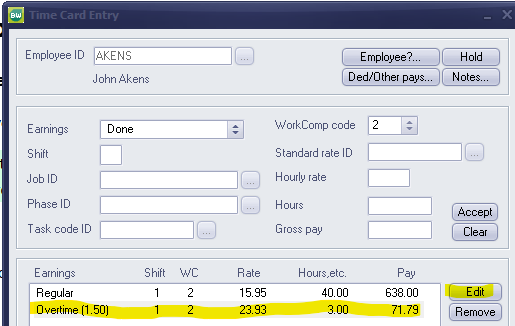
- Change the Shift to 6 for qualified overtime hours.
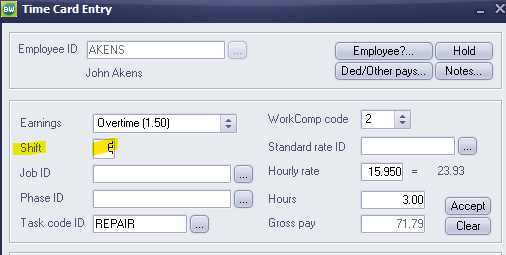
- Click Accept and Save the timecard.
- Select PR, Processing, Automatic Payroll Calculation. Calculate the payroll for this employee only.
- Manually adjust taxes if rates or tables changed after the original check printed.
- Select PR, Processing, Manual Payroll Calculation.
- Select the employee.
- Click Yes to use the calculated check information.
- Click Federal & State Taxes.
- Adjust only the Company and Employee amounts to match the original check.
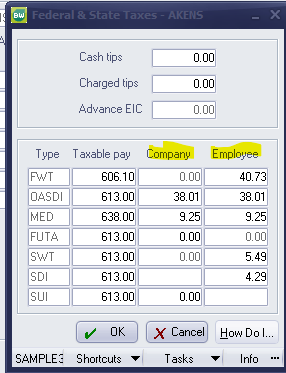
-
- Select PR, Processing, Print Payroll Check. Print the check to plain paper using the same number as the original check.
If the check is in a previous quarter
There’s no way to correct the check. You’ll manually adjust the Enhanced Tax Reporting grid when filing your W-2s to show the correct total.
Need more help?
Solution Properties
- Solution ID
- 260120152359723
- Last Modified Date
- Fri Apr 03 17:54:06 UTC 2026
- Views
- 0