

Summary
Can't create a new session with many users. A blank white screen appears when opening tasks such as Sales Order Entry, Customer Inquiry, Invoice Data Entry, or Purchase Order Entry.
Cause
Other server errors include "Pvxwin32.exe DLL Initialization Error". This issue occurs when the Sage 100 Application Server runs as a service and 50 to 75 or more pvxwin32.exe tasks are active. Windows Server operating systems are optimized for desktop applications over services, allowing more instances of programs to run as desktop applications than as services.
Resolution
Before making changes
- Ensure Windows Restore Points are in order.
- Back up the Windows Registry.
- Failure to do so results in an unrecoverable Windows state.
Run Sage 100 Application as Desktop Application
Switching the Application Server from a service to a desktop application often resolves the issue.
- Open Windows Services and stop the Sage 100 service.
- Change the service Startup type from Automatic to Manual.
This action reverses the process described in the Sage 100 Installation and Administration Guide.
Refer to the Service Configuration Section. - Start as a desktop application:
- Run Application Server Startup from the Windows Start menu, or
- Click Start from Application Server Configuration, Server
- Ensure you’re logged on at the server and are a member of Administrators or Domain Administrators.
- For Sage 100 Premium, the original account running the Host service must remain logged on.
Modify Windows Registry (Run Sage 100 as Service)
Use this option if you need to increase the number of pvxwin32.exe tasks while running Sage 100 as a service.
Warnings
- Incorrect registry edits can cause serious system damage.
- Perform a full system backup or at least a backup of the Windows system state.
- This change affects all programs on the server. Some applications (for example, Backup Exec, Windows Task Scheduler) will be incompatible with high values.
- Monitor the Windows Event Viewer for errors after changes.
- If issues occur, lower the third value in 512k increments and reboot until stable.
- Don’t exceed 8192 for the services heap size; older Windows Server versions fail beyond this limit.
- If Backup Exec conflicts, consider running Sage 100 and Backup Exec on separate servers.
Steps
- Edit the registry key:
HKEY_LOCAL_MACHINE\System\CurrentControlSet\Control\Session Manager\SubSystems. - Right-click the Windows value and select Modify.
- Locate the element: SharedSection=1024,20480,768.
- First value (1024): System-wide heap size (don’t modify).
- Second value (20480): Heap size for desktop applications.
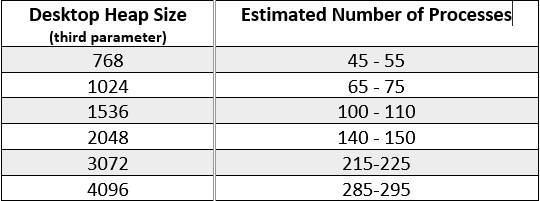
- Third value (768): Heap size for services (modify this value).
- Fourth value (if present): Remote desktop heap size (don’t modify).
- Calculate the third parameter:
(Number of desired concurrent pvxwin32.exe processes) * 13.5 = Third parameter value. - Reboot after you correct the heap size.
Example
If you want 85 concurrent pvxwin32.exe processes, multiply 85 by 13.5 to get 1147.5. Round up to 1536 and use that value in the registry.
SharedSection=1024,20480,1536
Need more help?
 Africa
 Asia
Asia Australia
 Canada
 France
 Ireland
 Kenya
Kenya Nigeria
 Portugal
 South Africa
 Spain
Spain United Arab Emirates
 United Kingdom
 Germany