

Summary
Resolution
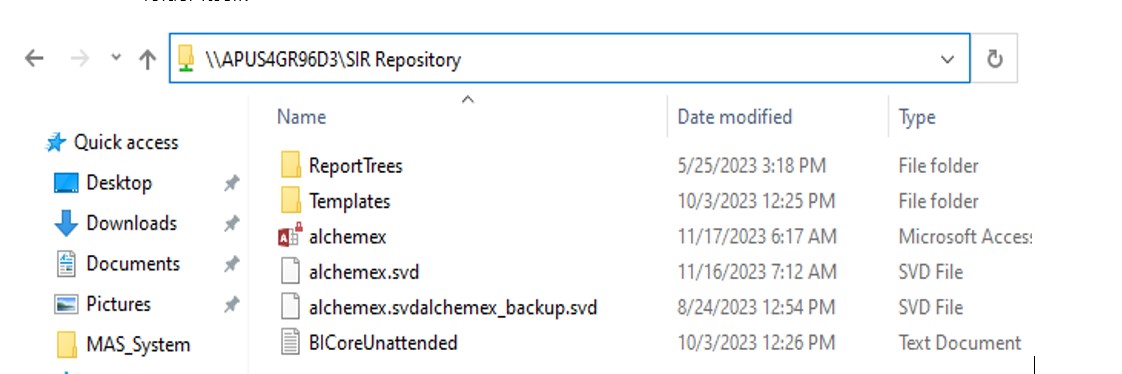
Set up the Repository folder on the network (Termed the "Metadata Repository" in the program interface. This shared folder holds all report templates, reporting trees and the activation information/control file.)
A new empty repository folder is required any time an upgrade for Sage 100 is done between versions where there were Sage Intelligence changes. That is, when upgrading Sage 100 from pre-2014 to 2015 or later, and from 2015-2024 versions to 2025 and later. If a new repository isn’t created during these transitions, then the new report templates and other associated components won’t install or be available for use in Report Manager. When not transitioning between these versions, it's best practice to simply reuse the existing repository folder or it can also be copied in it's entirety to a new server.
The Repository path must be:
- Set using a UNC path. DON'T use a mapped drive. Find the computer name in 'This PC' properties when setting up on your own machine for testing. KB 224924550061593 Sage 100 Intelligence environmental requirements.
- Entered after running Sage 100 as administrator. Right-click Sage 100 and run as admin. KB 224924650067905 Unable to save repository path.
- Fully share the Repository for everyone accessing it. Include minimum read/write permissions. KB 224924550061593 Sage 100 Intelligence environmental requirements.
- When setting an existing repository on a new workstation, set the path to a folder which contains the Templates folder. Don't map the Repository to the Templates folder itself.
 TIP: Enter the keys carefully. Ensure there are no extra spaces when entering activation keys. This product doesn’t limit the account/serial key fields to the correct size automatically. It's designed to work with multiple serial number styles and lengths.
- This article includes details of different activation key styles and a screenshot example of how license counts display. KB 222924550020026 How to register Sage Intelligence product.
- KB 222924850024816 How to remove a workstation license for Sage 100 Intelligence.
- The most common activation calls are regarding activation keys incorrectly entered, license counts, or this error: KB 224924450059453 Error: "The download file (PLDONGLE.DLL) isn’t the expected size. The download has been aborted. Please check that your internet connection is functioning correctly. Error is generated from the server". This article discusses firewall settings to allow successful activation via an Internet connection.
- Keys either use an old Vantive account ID and activation key style, or the current 4000xxxxxx account number and newer/longer activation key.
- Depending on which licenses the customer owns, the license count populates in different fields within License Manager.
- If there are genuine issues with the activation keys (other than unlocking the correct number of users, etc.), then submit a request via the Sales Admin Smartsheet. Make the request to correct the activation server details.
- Report Manager and Report Viewer are the main interface that users will run and manage reports from. They’re both workstation licenses and attach to the workstation computer name. SI Designer and SI Connector are both site licenses and either unlock for the whole network or not, according to keys (hence don’t show a user count on customer license listing). You must have an SI Designer license for the main Financial Designer functions. You must have an SI Connector license for consolidated multi-company financial reports or linking to external data.
 NOTE: We support the standard "out of the box" templates. We DO NOT support customer or partner customized reports. Almost all custom reports originate from the same standard Financial Report Designer 1-1 template. So, if that template doesn’t function correctly then none of the customer reports based on that template will work either.
TIP: ALWAYS test first with the standard Financial Report Designer 1-1


When run successfully without issue, the report will launch into Excel and load the Task Pane on the right.
 CAUTION: If the Task Pane doesn’t load, then the cells in the worksheets can't calculate correctly.
The Designer Task Pane is essentially a macro built into the Excel template file. If it fails to load, then cells in the report won’t be able to run their formulas. Instead, the report populates with '#name' or '#value'. This will be the cause of most Sage Intelligence calls. KB 222924350018616 Task Pane is missing in Excel when generating a Report Designer Add-In report in Sage 100 Intelligence.
When components load correctly in Excel, you’ll see the following three Add-Ins showing in the Active section of Excel Options, Add-Ins:
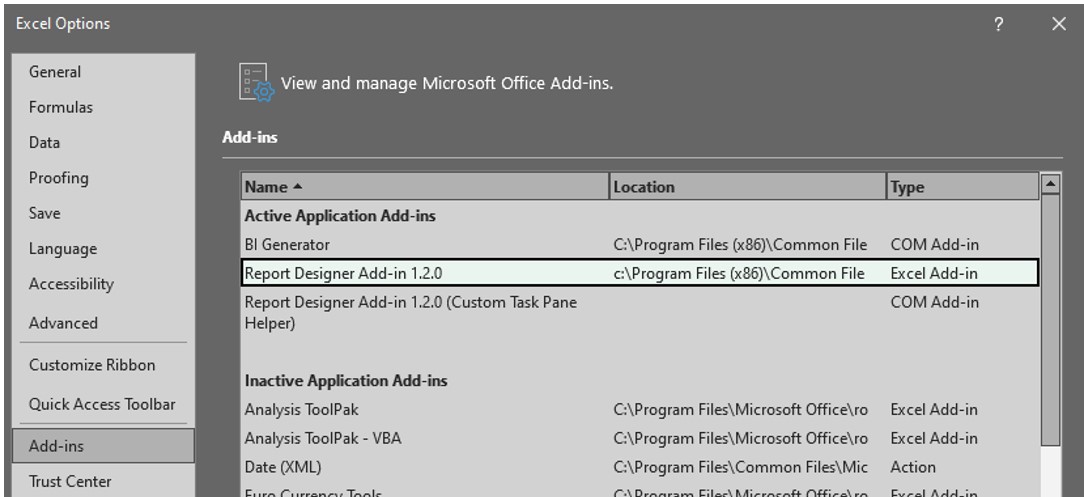
The Microsoft "Solver Add-in" is a known conflict and should be disabled if shown as Active:

- There are both 32-bit and 64-bit versions of the Report Designer Add-in, and the correct one will automatically plug into Excel during workstation setup autorun.exe. Expand the location column to see which bit version is active, which should be compared to the version of Excel shown in Excel Options, Account, About Excel.
- The Designer license is required for the Financial Designer functionality. Almost all customers will have the Sage Intelligence Designer bundled into their product licenses with their C/monthly renewal and will show listed in the Customer 360 window with zero user count.
- All components of Sage Intelligence install automatically when running workstation setup autorun.exe as admin.
- The error that the Report Designer is required but not installed immediately upon running the Financial Designer report is a direct indication that the required windows registry entry is missing. KB 223924450034773 Sage Intelligence Error: "The Report Designer Component is required by this report and is not installed on the workstation. Please install it before running this report".
- Sage Intelligence is environmentally sensitive; even if correct licensing is present and correct add-ins are loaded in Excel they won’t be able to load on the report if the local user lacks the required permissions. See the section on required permissions (or KB 224924550061593 for local permissions details. Sage 100 Intelligence environmental requirements.
- If Excel add-ins show the SIR add-in as the file name (Sage.Bi.ExcelFunctions) instead of the add-in name itself (Report Designer Add-in 1.2.0), then Excel is failing to recognize the add-in and the most common cause is Excel incorrectly loading the wrong version. KB 220924660107912 Sage Intelligence Task Pane will not launch; getting Sage.BI.ExcelFunctions in Excel Add-ins.
NOTE: We support the standard "out of the box" templates. We DO NOT support customer or partner customized reports. Almost all custom reports are built off the same standard Financial Report Designer S100 8.0 template. So, if that template doesn’t function correctly then none of the customer reports based on that template will work either.
TIP: ALWAYS test first with the standard Financial Report Designer S100 8.0
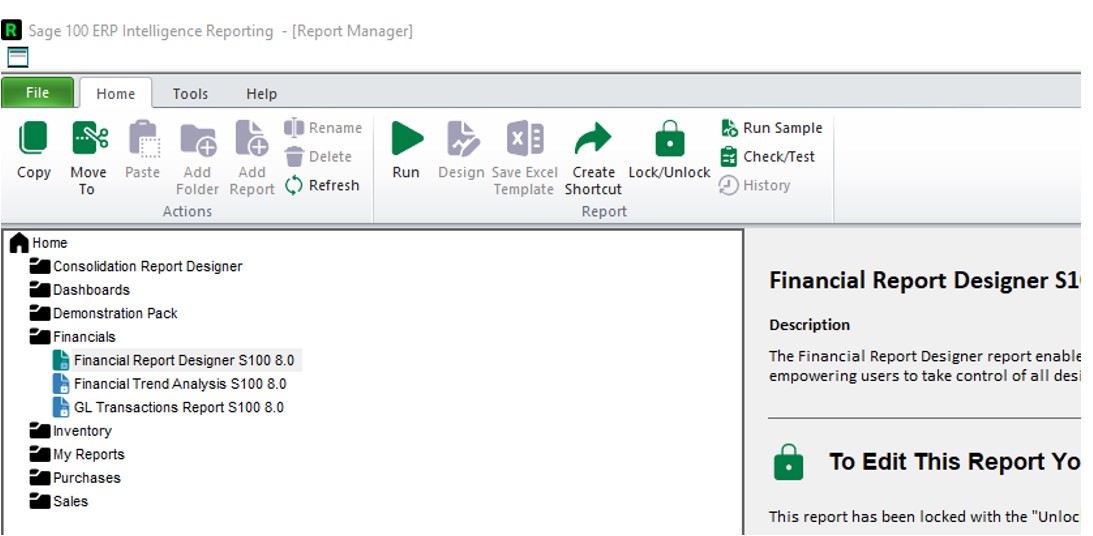
When successfully run without issue, the report will launch into Excel and load the Task Pane on the right

CAUTION: If the Task Pane doesn’t load, then the cells in the worksheets can’t calculate correctly.
The Designer Task Pane is essentially a macro built into the Excel template file. If it fails to load, then cells in the report won’t be able to run their formulas and instead will populate with '#name' or '#value'. This will be the cause of most Sage Intelligence calls. KB 222924350018616 Task Pane is missing in Excel when generating a Report Designer Add-In report in Sage 100 Intelligence.
When components are correctly loaded in Excel, you’ll see the following four Add-ins showing in the Active section of Excel Options, Add-Ins:
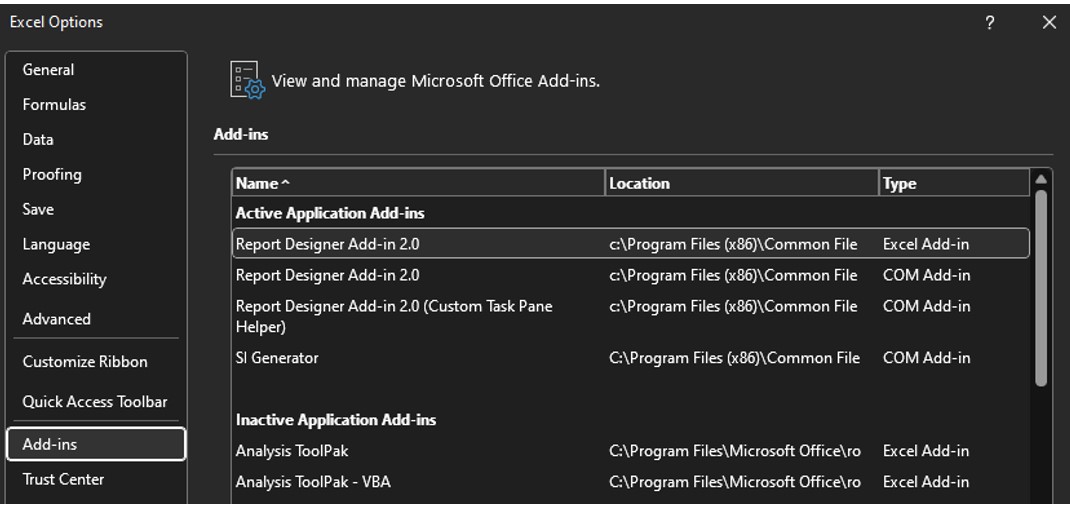
- There are both 32- and 64-bit versions of the Report Designer Add-in, and the correct one should automatically plug into Excel during workstation setup autorun.exe. Expand the location column to see which bit version is active, which should be compared to the version of Excel shown in Excel Options, Account, About Excel.
- The Designer license is required for the Financial Designer functionality. Almost all customers will have the Sage Intelligence Designer bundled into their product licenses with their C/monthly renewal and will show listed in the Customer 360 window with zero user count.
- All components of Sage Intelligence install automatically when running workstation setup autorun.exe as admin.
- The error that the Report Designer is required but not installed immediately upon running the Financial Designer report is a direct indication that the required windows registry entry is missing. KB 223924450034773 Sage Intelligence Error: "The Report Designer Component is required by this report and is not installed on the workstation. Please install it before running this report".
- Sage Intelligence is environmentally sensitive; even if correct licensing is present and correct add-ins are loaded in Excel they won’t be able to load on the report if the local user lacks the required permissions. See the section on required permissions (or KB 224924550061593 for local permissions details. Sage 100 Intelligence environmental requirements.
- If Excel add-ins show the SIR add-in as the file name (Sage.Bi.ExcelFunctions) instead of the add-in name itself (Report Designer Add-in 1.2.0), then Excel is failing to recognize the add-in and the most common cause is Excel incorrectly loading the wrong version – KB 220924660107912 Sage Intelligence Task Pane will not launch; getting Sage.BI.ExcelFunctions in Excel Add-ins.
- Any custom reports that need to be brought to the new version must be exported from the prior Intelligence version/repository. To export a report, open Report Manager and right-click on the report, then click Export Report. Alternatively, simply select report with a left-click and click Export Report button from the Tools menu.
 Africa
 Asia
Asia Australia
 Canada
 France
 Ireland
 Kenya
Kenya Nigeria
 Portugal
 South Africa
 Spain
Spain United Arab Emirates
 United Kingdom
 Germany